Connect TradingView
The webhook URL, the alert messages to paste, and the JSON format for Pine scripts.
Each TradingView alert needs two things from Promethean: the webhook URL (where to send the alert) and the alert message (which bot, and what to do). Both are on your bot's page under Webhook / Alert Setup — open Bots, then View on the bot.
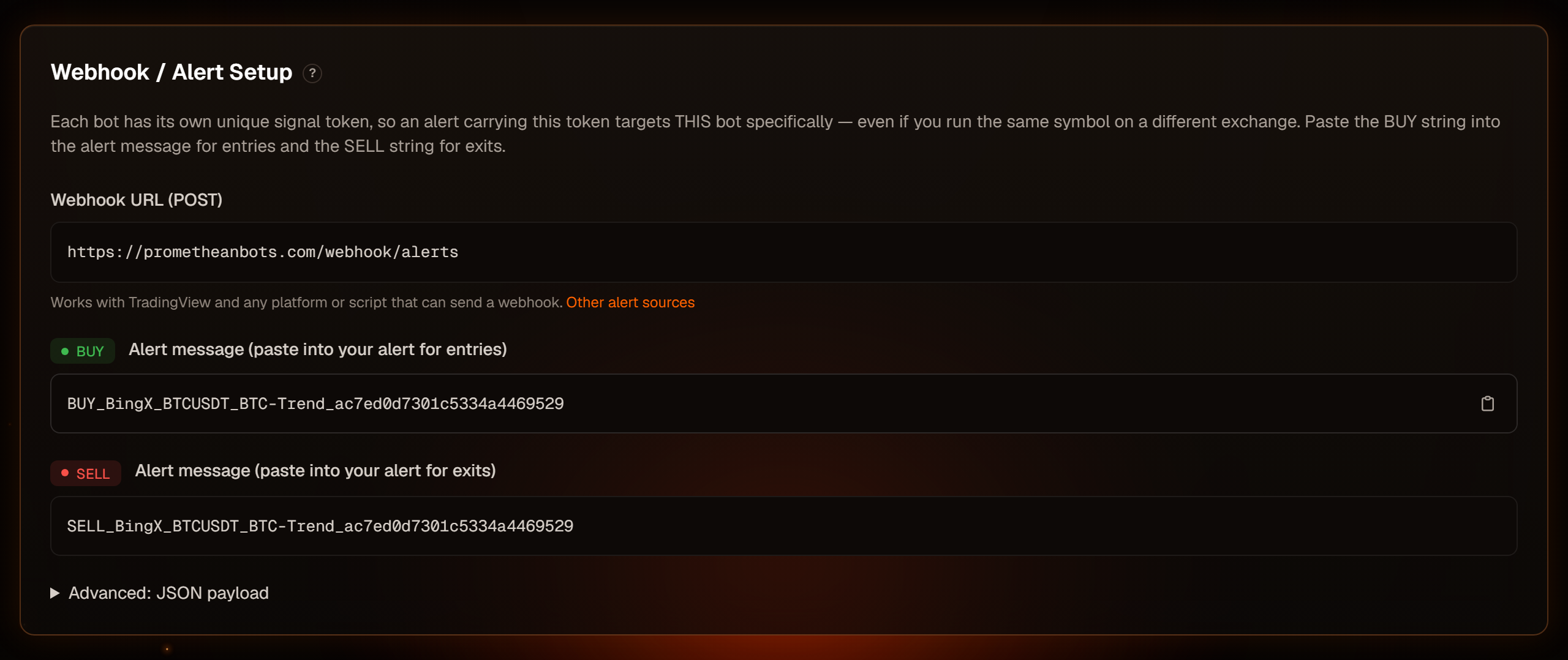
The webhook URL is the same for every bot:
https://prometheanbots.com/webhook/alerts
It's the alert message that tells Promethean which bot the alert is for.
Alerts set up with an older URL, such as one on
prometheanlabs.onrender.com or ending in /webhook/tradingview, keep
working, so there's no need to change them. Using a different charting
platform? See Other alert sources.
What you need in TradingView
TradingView only sends webhooks from paid plans, and asks you to turn on two-factor authentication on your TradingView account before you can use them. Check TradingView's current plan details if the webhook option isn't available to you.
Set up the alert
- On your chart, create an alert on your indicator or strategy condition.
- In the alert's Message field, paste the bot's alert message — the BUY message on your entry alert, the SELL message on your exit alert. Replace anything already in the field.
- In the alert's notification settings, enable Webhook URL and paste the bot's Webhook URL.
- Save the alert.
You usually need two alerts per bot: one for entries and one for exits. When an alert fires, its result appears on the Logs page within a few seconds.
Test with a dry-run bot first. Fire the alert once (or set a condition that triggers soon) and check the log entry before you trade live.
The alert message
A bot's alert message looks like this:
BUY_BingX_BTCUSDT_BTC-Trend_3f9c2a71d0e84b6c5a1f2e7d
It's read as action _ (description) _ bot token:
- The first part is the action.
- The last part is the bot's token — a code unique to this bot. It is what makes the alert reach this bot and no other.
- Everything in between (exchange, pair, bot name) is only there so you can recognise the alert in TradingView. Promethean ignores it.
So keep the action first and the token last, and don't add anything after the token.
Actions
| Action | Meaning | Order sent |
|---|---|---|
BUY |
Enter (or open) a long | Buy |
SELL |
Exit the long | Sell |
ENTER-LONG |
Open a long position | Buy |
EXIT-LONG |
Close the long position | Sell (reduce-only on futures) |
ENTER-SHORT |
Open a short position — futures bots only | Sell |
EXIT-SHORT |
Close the short position — futures bots only | Buy (reduce-only) |
Actions are not case-sensitive. In the alert message they must be written with
a hyphen (ENTER-LONG, not ENTER_LONG), because the parts are separated
by underscores.
Regular bots show BUY and SELL messages, which trade long only:
BUY is the same as ENTER-LONG and SELL is the same as EXIT-LONG. Bots
created from a strategy show the ENTER / EXIT messages
directly.
To trade shorts with a regular futures bot, copy its BUY message and
replace BUY with ENTER-SHORT or EXIT-SHORT:
ENTER-SHORT_BingX_BTCUSDT_BTC-Trend_3f9c2a71d0e84b6c5a1f2e7d
EXIT-SHORT_BingX_BTCUSDT_BTC-Trend_3f9c2a71d0e84b6c5a1f2e7d
Spot bots can't short — a short action on a spot bot is logged as failed ("Spot bots cannot short — shorting requires a futures bot…").
One position at a time
A bot holds a single position. An enter signal while a position is already open is refused, and Promethean doesn't flip from long to short in one signal: to reverse, send the exit first, then the opposite enter.
Keep your bot token private
Anyone who has the alert message can send trades to that bot. Don't post alert messages or screenshots of them publicly. If a token leaks, delete the bot and create a new one — the new bot gets a new token (then update your TradingView alerts).
Advanced: JSON messages
If your Pine script builds its own alert message, you can send JSON instead. Open Advanced: JSON payload on the bot page for a ready-made example:
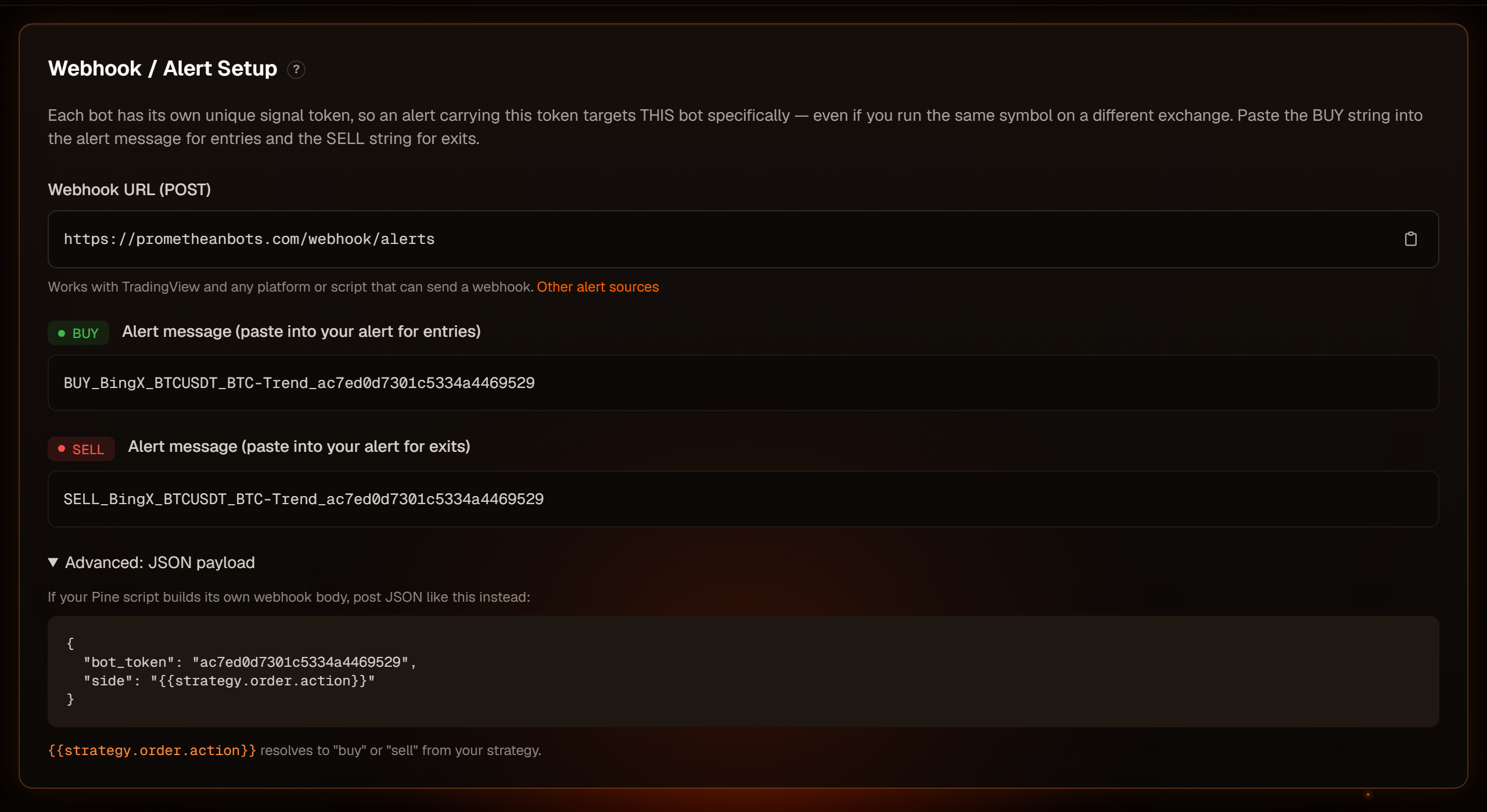
{
  "bot_token": "3f9c2a71d0e84b6c5a1f2e7d",
  "side": "{{strategy.order.action}}"
}
In a TradingView strategy alert, {{strategy.order.action}} is replaced
with buy or sell. Like BUY/SELL, that trades long only. For a
strategy that goes long and short, send an explicit action instead:
{ "bot_token": "3f9c2a71d0e84b6c5a1f2e7d", "action": "ENTER-SHORT" }
A common Pine pattern is to put each message in the order's alert_message
(for example strategy.entry("Short", strategy.short, alert_message="…")) and
set the alert's Message to {{strategy.order.alert_message}}.
| Field | Required | Notes |
|---|---|---|
bot_token |
Yes | The bot's token (the last part of its alert message). |
side |
One of side / action |
buy or sell, lowercase. Long-only meaning, as above. |
action |
One of side / action |
ENTER-LONG, EXIT-LONG, ENTER-SHORT, EXIT-SHORT (or BUY/SELL). Any case; _ also accepted here. |
price |
No | Price at signal time. Used to size the order and as the limit price for limit-order bots. Without it, the latest exchange price is used. |
percent |
No | Overrides the bot's sizing for this signal: percent (0–100) of your free balance, times the bot's leverage. |
qty |
No | Overrides the bot's sizing with an exact quantity of the coin. Not multiplied by leverage. |
percent and qty override the size you set on the bot. Leave them out unless
you mean to.
The account webhook token (older format)
Your Profile also shows a webhook token and an example payload
containing token and symbol. That's an older format that still works: it
sends the signal to every active bot of yours trading that symbol. The
per-bot messages above are simpler and target exactly one bot, so we recommend
those. Note the profile's example includes "percent": 10, which overrides
your bots' own sizing. See Account & security.
Limits
- Duplicates: if the same signal for the same bot arrives twice within the same 30-second window (TradingView retries when a delivery is slow), the second is ignored and logged as DUPLICATE. No second order is placed.
- Rate limit: at most 60 signals per minute across all your bots. Extra signals are dropped and logged as RATE_LIMITED — usually a sign of an alert firing in a loop.
If nothing shows up in Logs
Some alerts are rejected before they reach a bot, so they never appear in your logs. If an alert fired in TradingView but your Logs page shows nothing, check:
- Is the bot paused? Paused bots reject alerts. See Pausing & stopping.
- Is the token right? A deleted bot's token, or a message cut off when pasting, is rejected.
- Is the message well-formed? It needs at least an action and a token
separated by
_, or valid JSON with the fields above. - Is the URL exactly the bot's Webhook URL?
In these cases Promethean answers TradingView with an error (for example
Invalid or inactive bot token), and TradingView's alert log may show the
webhook as failed. More in Troubleshooting.