Dashboard & logs
Read the dashboard and the execution logs, and what every status means.
Dashboard
The dashboard is your home page after logging in.
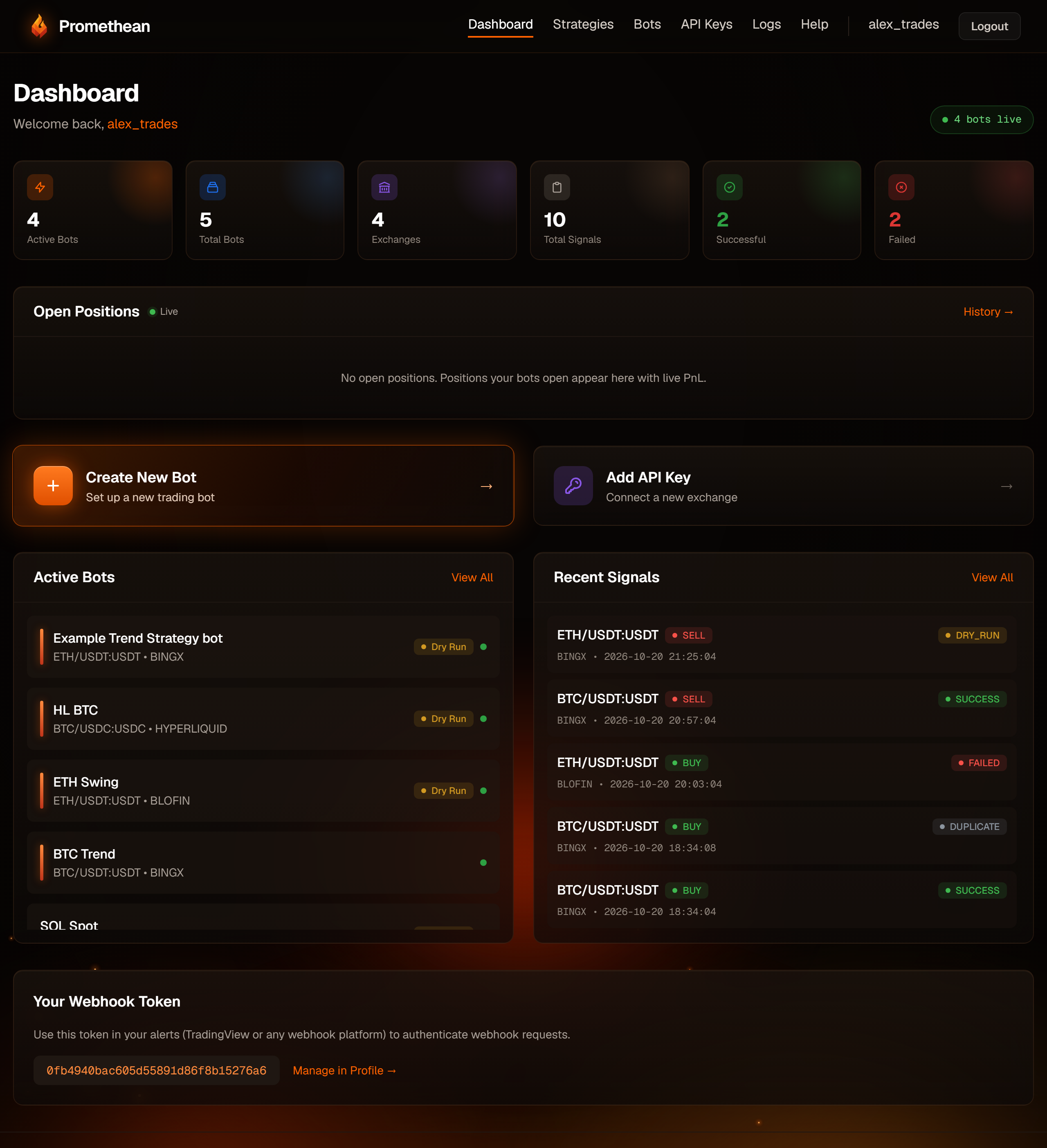
| Tile | What it counts |
|---|---|
| Active Bots | Bots that are switched on. |
| Total Bots | All your bots, running or paused. |
| Exchanges | API keys that are enabled. |
| Total Signals | Every signal logged, whatever the result. |
| Successful | Signals with status SUCCESS. |
| Failed | Signals with status FAILED. |
Dry runs, blocked, duplicate and rate-limited signals count towards Total Signals only.
Below the tiles:
- Create New Bot and Add API Key shortcuts.
- A bot panel showing your five most recently created bots, each with a green dot when it's running, a grey dot when paused, and a Dry Run tag.
- Recent Signals — the latest log entries. View All opens the Logs page.
- Your Webhook Token — the account token used by the older alert format (see Account & security).
Execution logs
Logs lists every signal that reached one of your bots, newest first, with the time (in your local time zone), bot, pair, side, quantity, price and status.
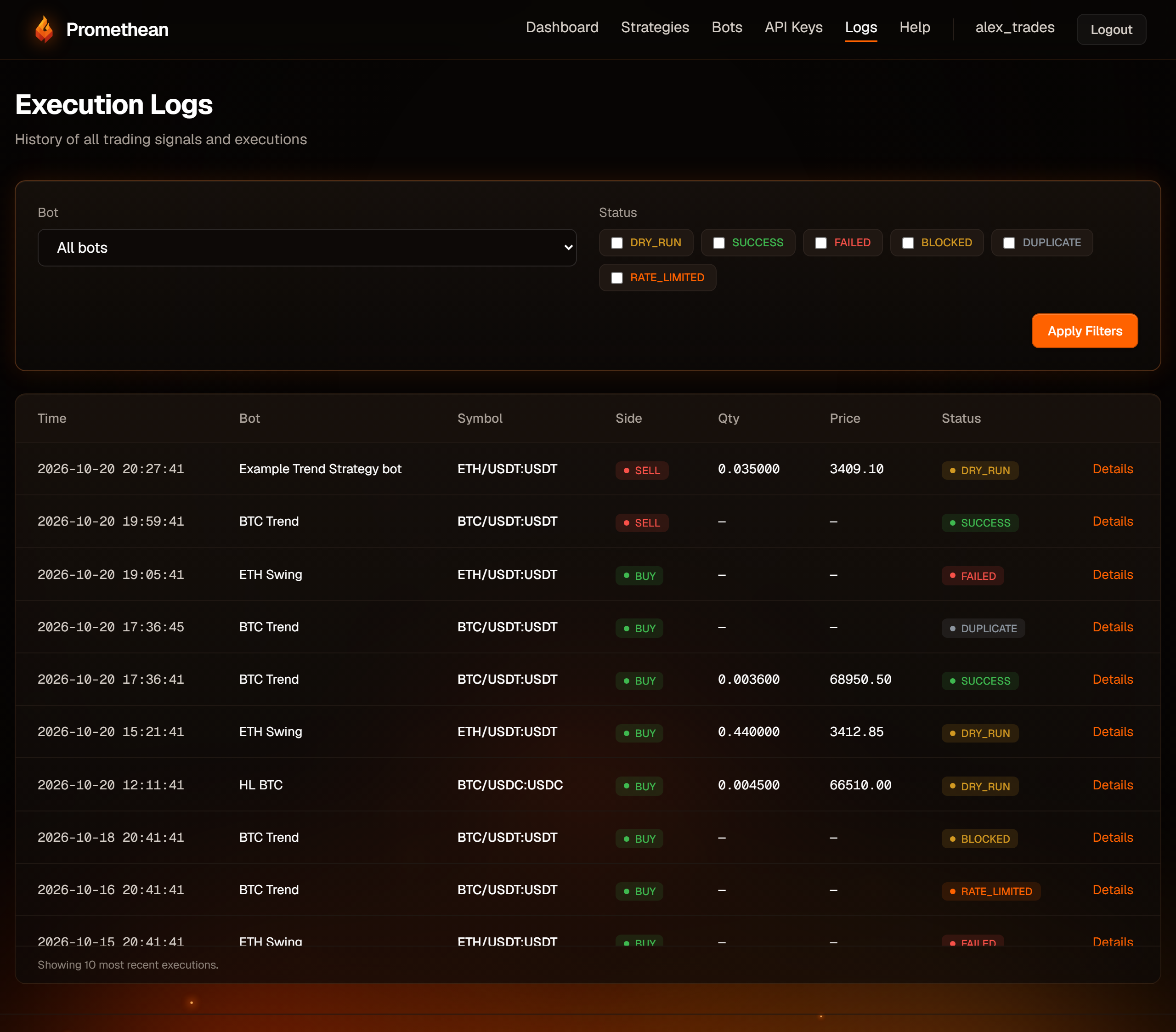
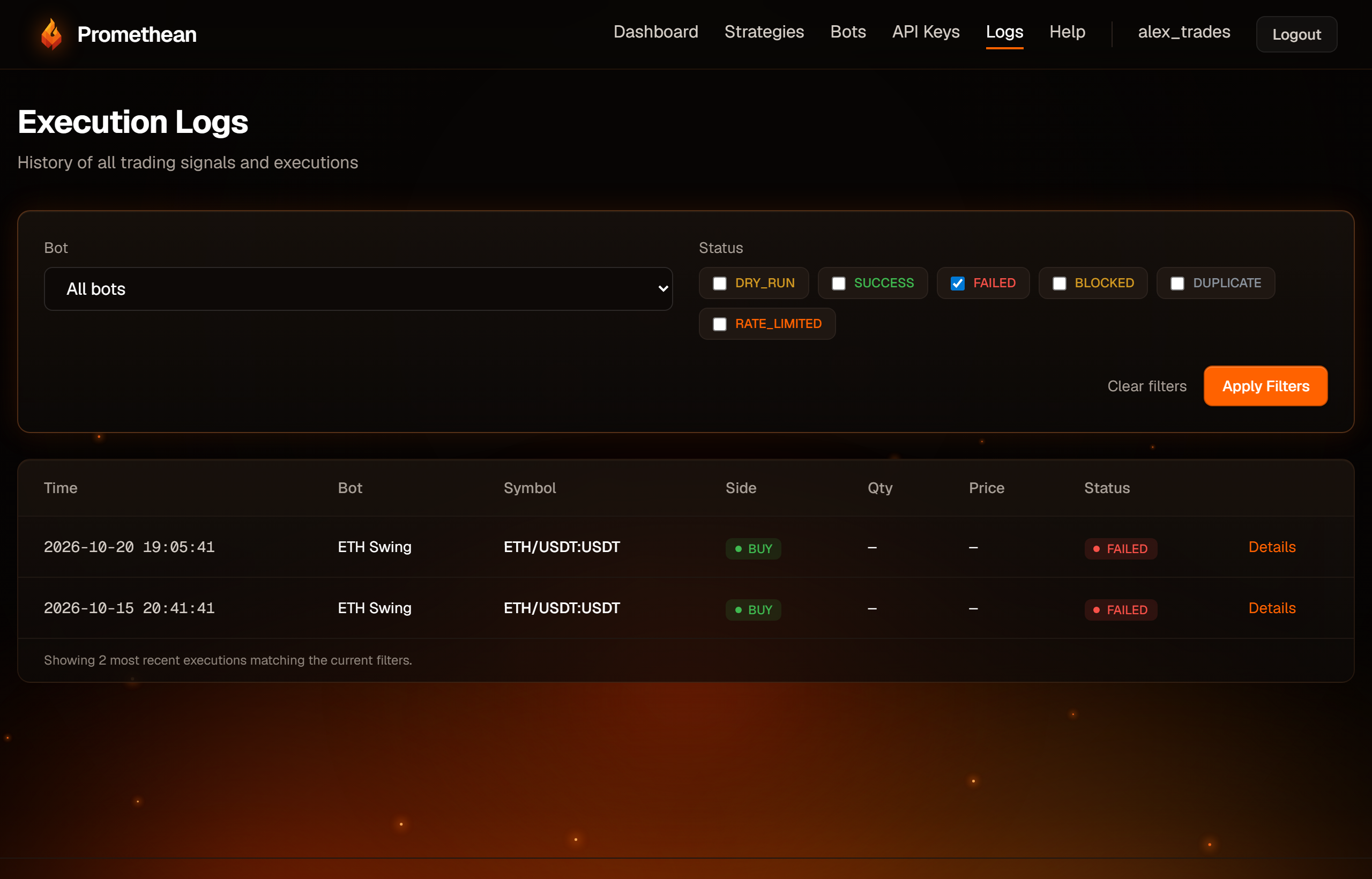
- Filter by bot and by one or more statuses, then Apply Filters. Clear filters resets them.
- The page shows the 50 most recent matching entries.
- Click Details to open an entry.
- From an open position, Logs → (on the dashboard and the bot page) opens just that trade's entries: the entry, take-profit fills, stop moves and monitor events. Show all logs for this bot widens it again.
Alerts that were rejected before reaching a bot — a paused bot, an unknown token, an unreadable message — aren't logged. See If nothing shows up in Logs.
The Side column shows the order direction, BUY or SELL, so ENTER-LONG
and EXIT-SHORT show as BUY, and EXIT-LONG and ENTER-SHORT show as SELL.
What each status means
| Status | Meaning |
|---|---|
| PENDING | Received and being processed. Normally becomes another status within seconds. |
| SUCCESS | The order was placed and filled. A success with a message attached is informational — for example "Already flat — nothing to close" when a take-profit or stop-loss had already closed the position. |
| DRY_RUN | A dry-run bot simulated the order. Nothing was sent to the exchange. |
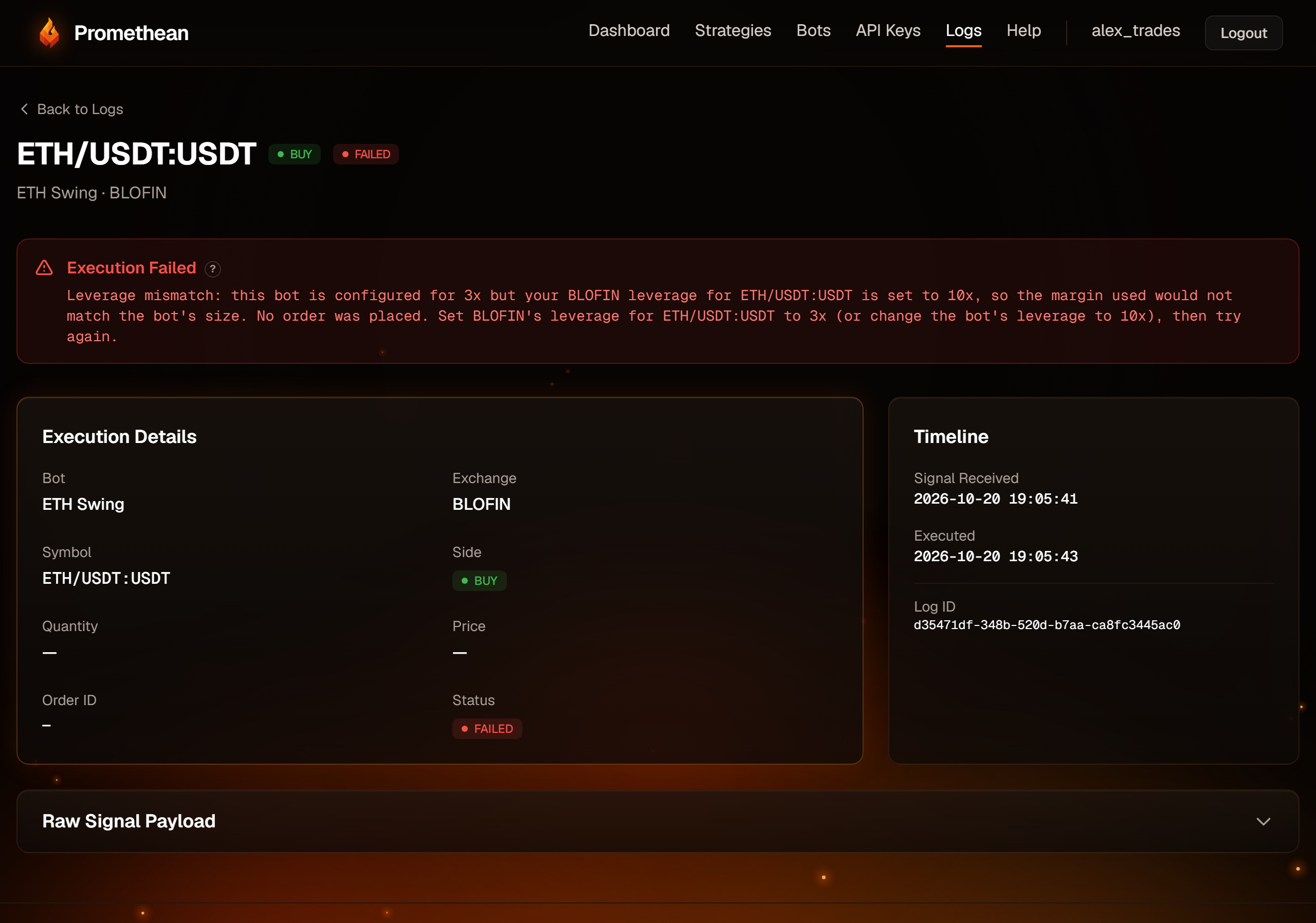
| FAILED | No order was placed, or the exchange rejected it. The detail page says why. |
| BLOCKED | The account kill switch was on. Nothing was sent. |
| DUPLICATE | A repeat of a signal already handled in the same 30-second window (usually a TradingView retry). Ignored on purpose. |
| RATE_LIMITED | More than 60 signals in a minute; this one was dropped. Check for an alert firing in a loop. |
Log details
Click Details on any entry.
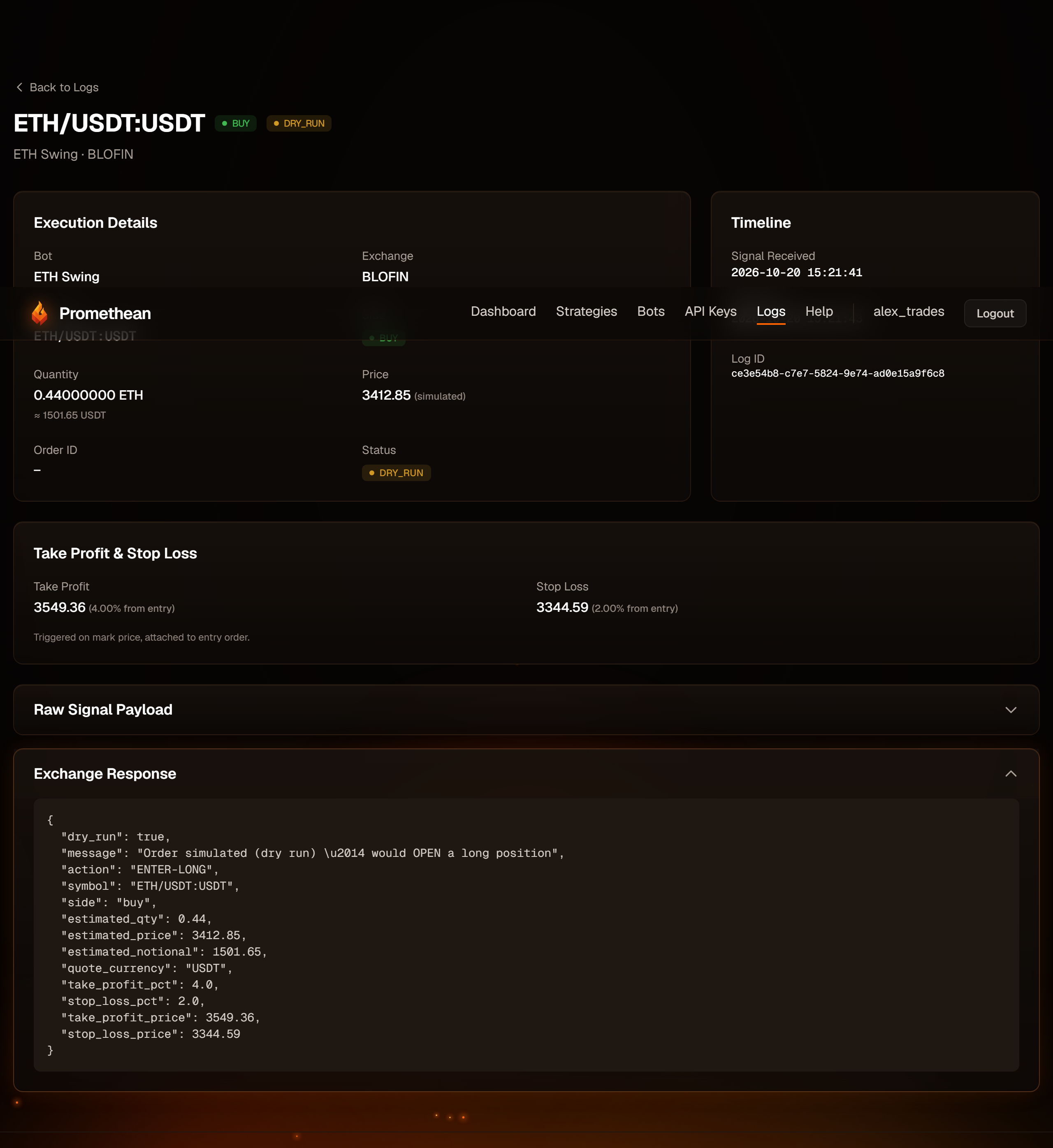
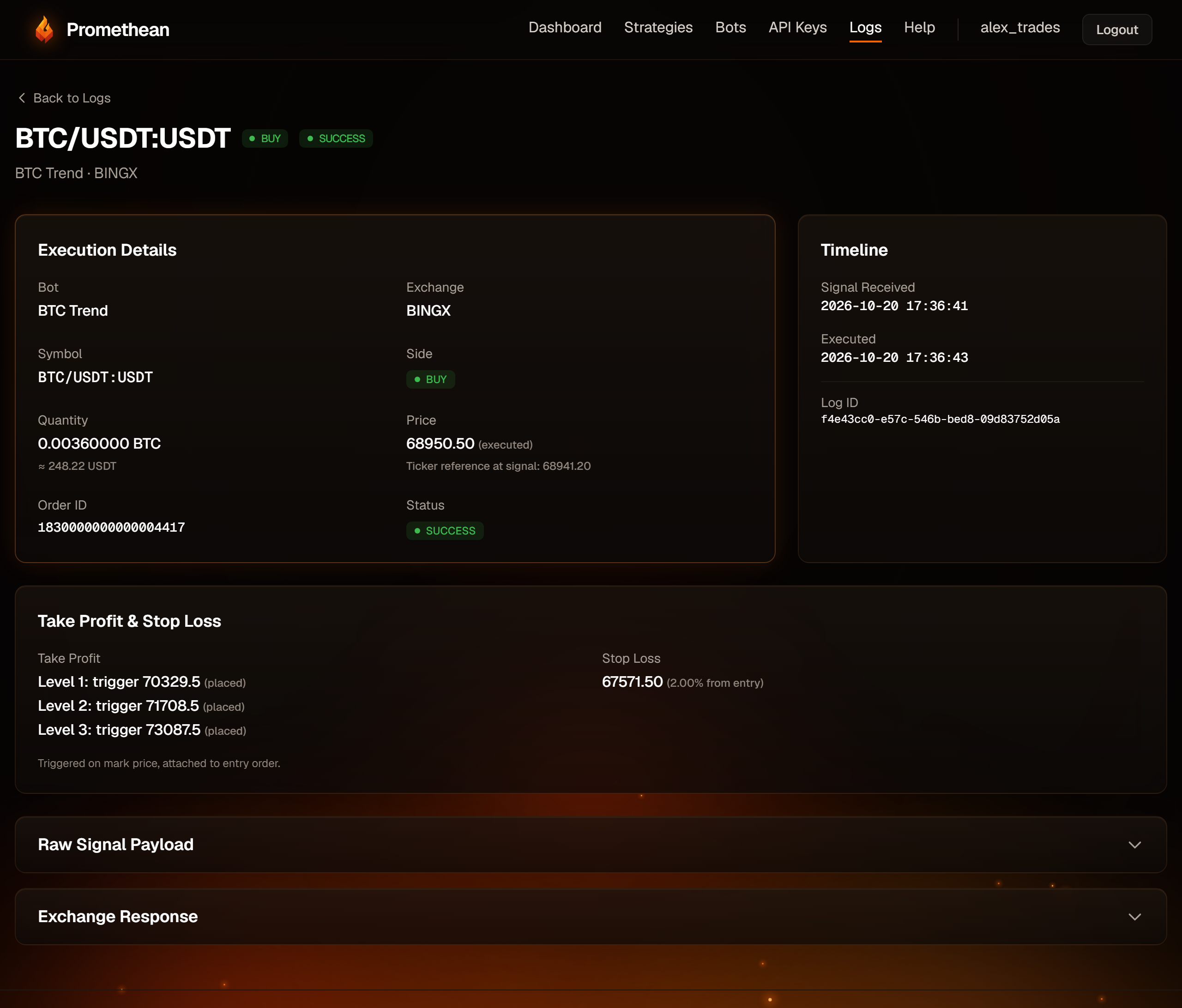
- Execution Details — bot, exchange, pair, side, quantity (with its value in the quote currency), price and order ID. The price is labelled (executed) for a real fill, (simulated) for a dry run, and (ticker reference — fill price unavailable) when the exchange didn't report a fill price.
- Timeline — when the signal arrived and when it finished.
- Take Profit & Stop Loss — the trigger prices placed with the entry. For a ladder, each level and its status.
- Raw Signal Payload — exactly what TradingView sent, useful for checking your alert message.
- Exchange Response — the exchange's raw reply. For dry runs it includes a plain-English line such as "Order simulated (dry run) — would OPEN a long position".
Failed, blocked, duplicate and rate-limited entries show a coloured box at the top explaining what happened:
Logs can't be deleted. The Troubleshooting page explains every common message.
Log details include your bot's token in Raw Signal Payload. Don't share screenshots of that section.