Use a strategy
Run one of the curated strategies with a pre-configured bot.
The Strategies page lists curated, backtested strategies. Use Strategy creates a bot that's already set up with the strategy's recommended settings and shows you the exact alert messages to paste into TradingView.
Browse strategies
Open Strategies in the top menu. Each card shows the strategy's timeframe, a short description, and headline backtest numbers: total return, max drawdown and profit factor.
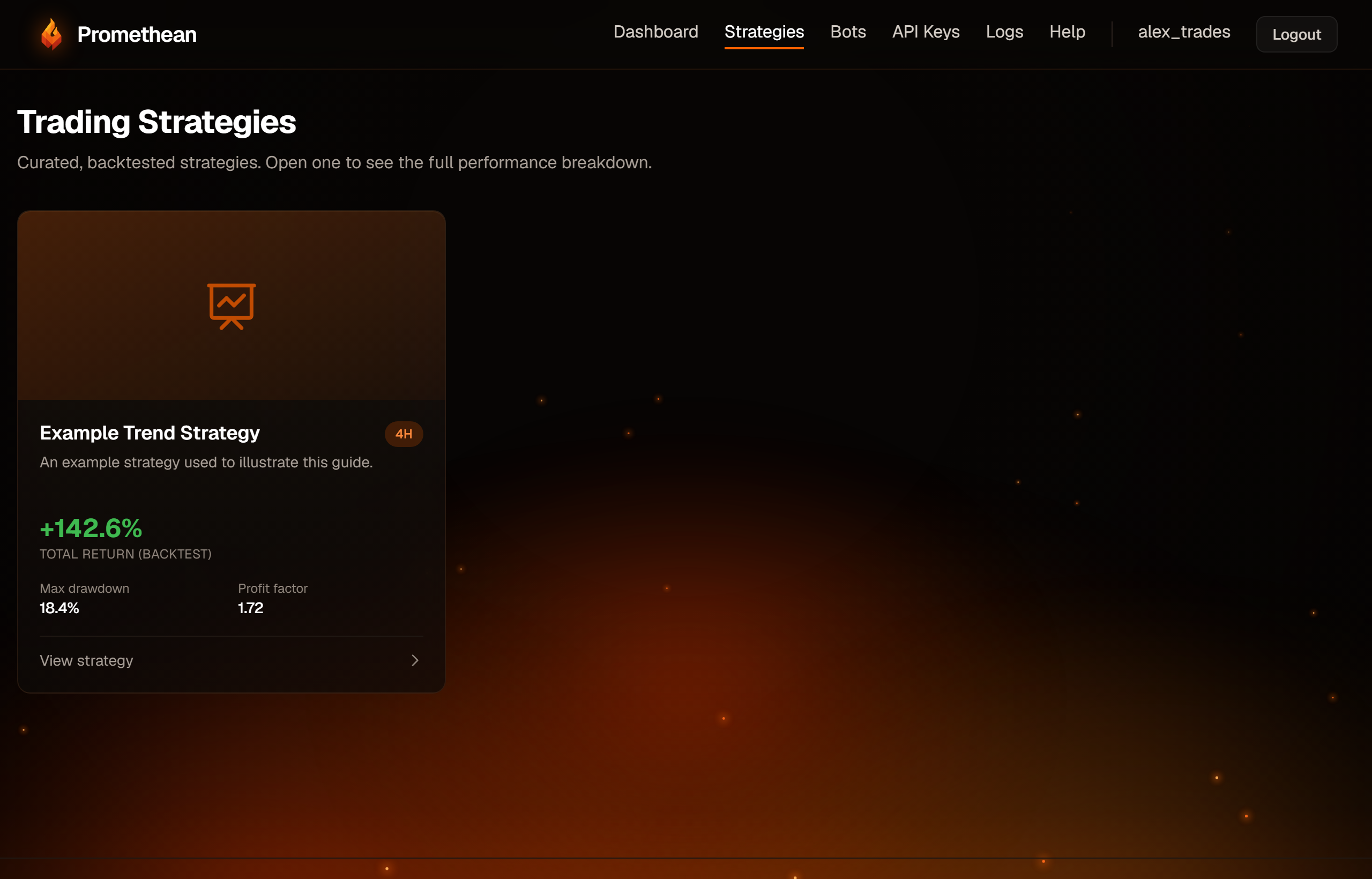
Open a strategy to see:
- Overview — what it does.
- Markets & recommended settings — the market it was tested on, the recommended timeframe, take-profit and stop-loss. Some strategies include their own fine-tuned stop-loss; those say so, and you don't need a separate stop.
- Backtest performance — total return, drawdown, profit factor, win rate, Sharpe ratio, trade counts and the backtest period, plus the equity curve.
- Whether it trades Long only or Long & Short.
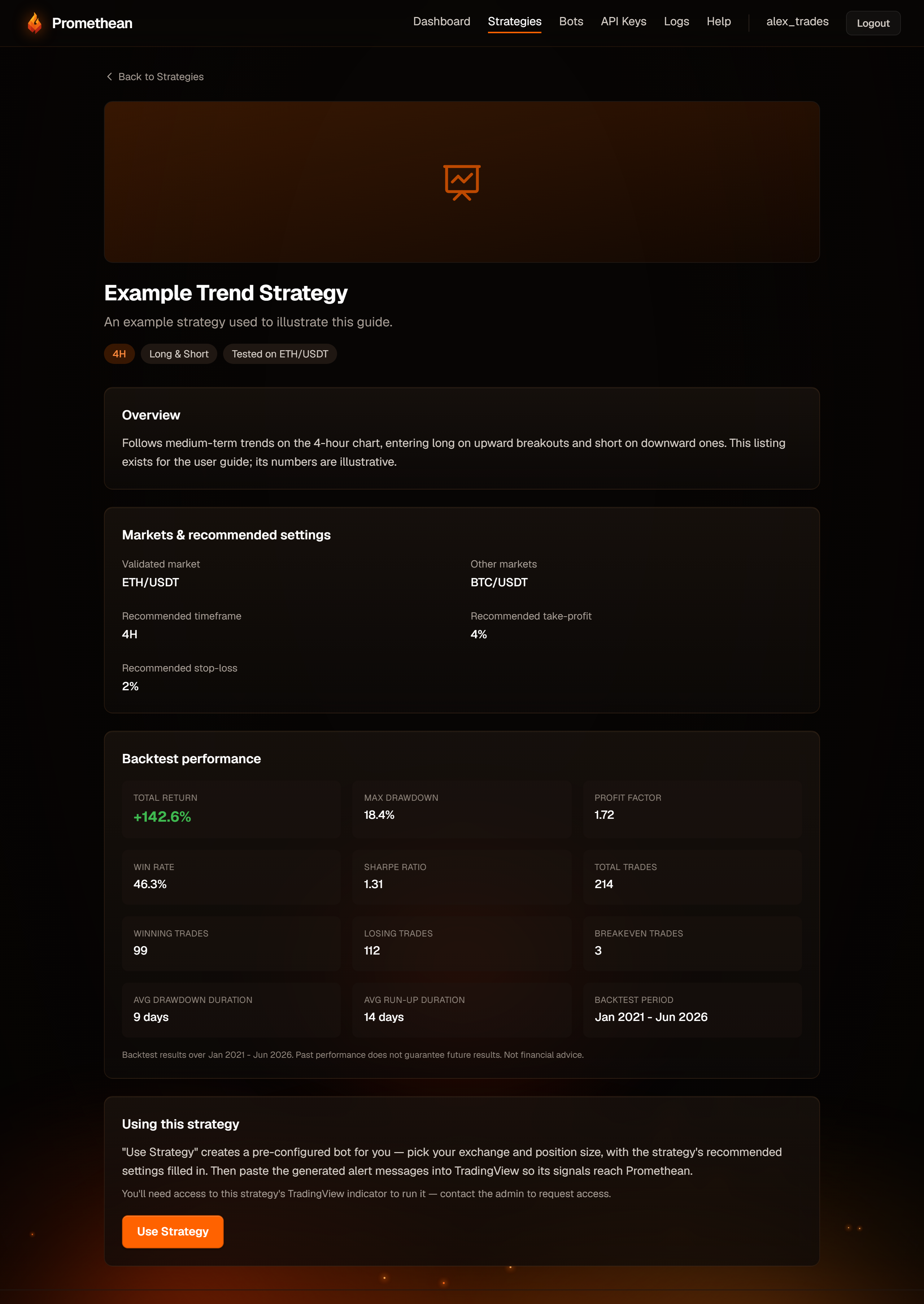
Past performance does not guarantee future results. Backtests are not financial advice.
You need the TradingView indicator
Strategies run from a TradingView indicator. To use one you need access to that indicator on TradingView — contact the admin to request access, as the strategy page explains.
Create a strategy bot
Click Use Strategy. The form is pre-filled from the strategy's recommendations; adjust anything to fit your account.
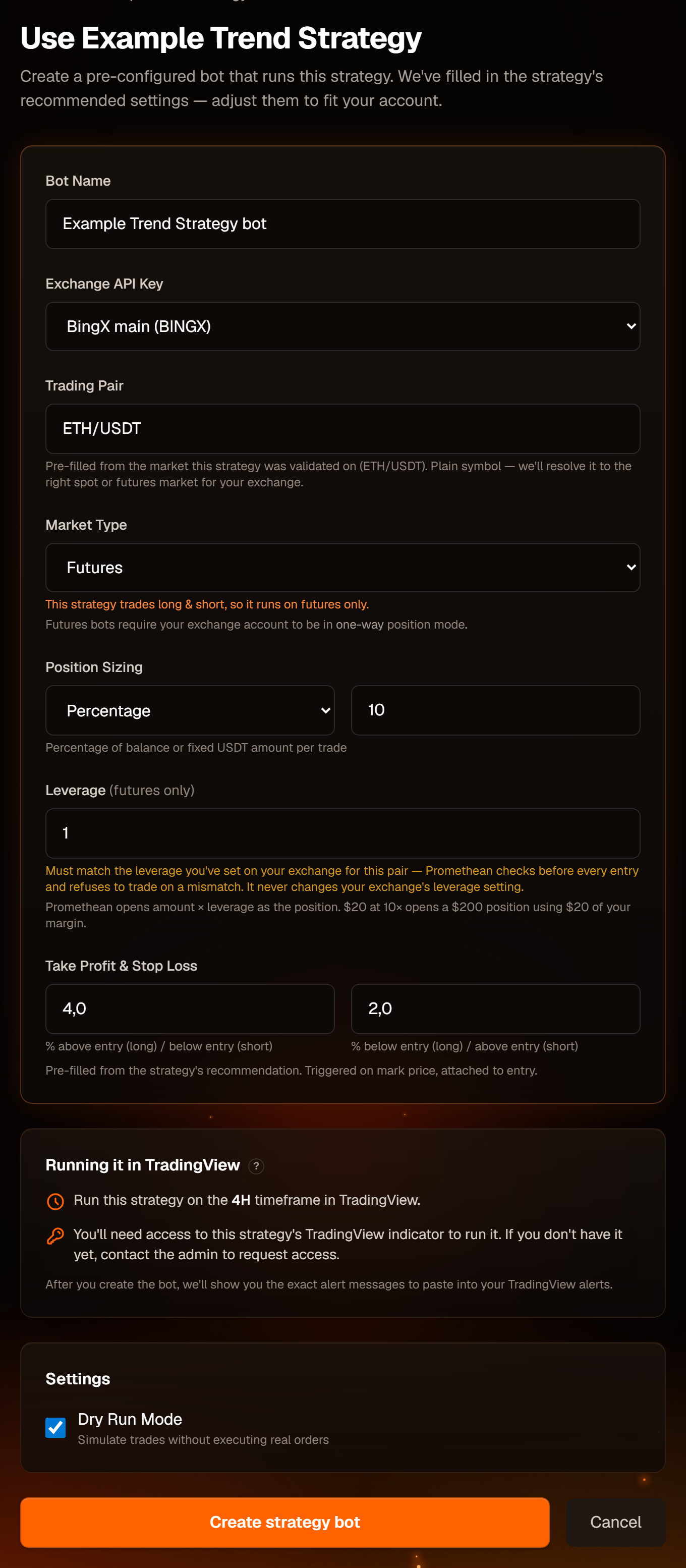
| Field | Notes |
|---|---|
| Bot Name | Defaults to the strategy's name + "bot". |
| Exchange API Key | Your connected keys. For a Long & Short strategy, spot-only keys (MEXC) can't be picked. |
| Trading Pair | Pre-filled with the market the strategy was tested on. |
| Market Type | Futures for most exchanges. Long & Short strategies run on futures only. |
| Position Sizing, Leverage | Same as a regular bot — see Create a bot. Leverage must match your exchange. |
| Take Profit & Stop Loss | Pre-filled from the recommendation. If the strategy has its own stop-loss, the stop-loss field is left off on purpose. |
| Dry Run Mode | Ticked by default. |
Strategy bots always use market orders and take a single take-profit level.
If you pick a Blofin or Hyperliquid key, the form may switch the take-profit and stop-loss fields off. Create the bot, then set them from Edit Bot on the bot's page.
Click Create strategy bot. If a Long & Short strategy is paired with a spot market or a spot-only exchange, the form explains what to change.
Paste the strategy's alerts
You're taken to the new bot's page. Strategy bots show position-aware alert messages:
- Long only:
ENTER-LONGandEXIT-LONG. - Long & Short:
ENTER-LONG,EXIT-LONG,ENTER-SHORTandEXIT-SHORT.
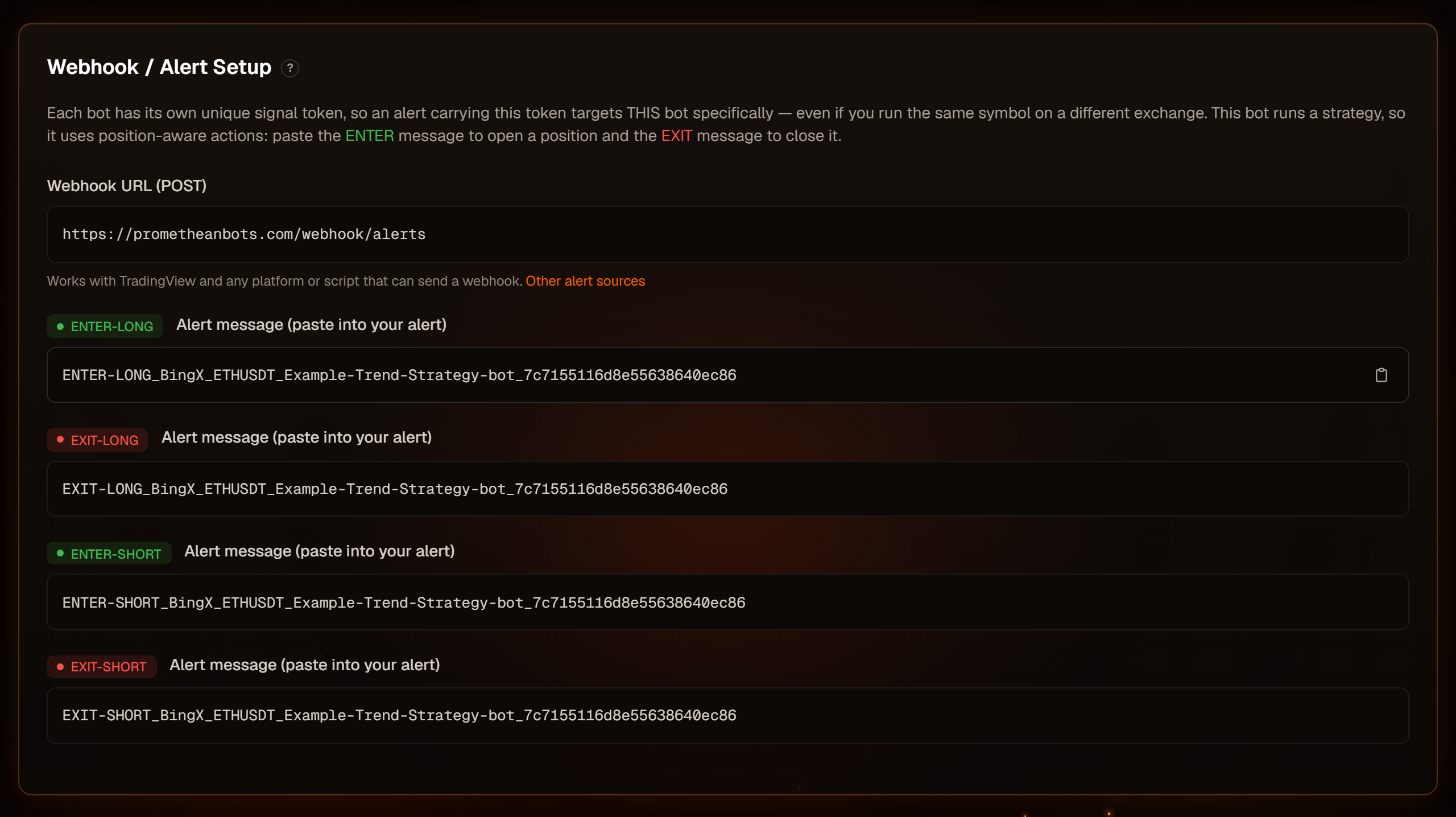
Create one TradingView alert per message on the strategy's indicator, on the recommended timeframe, and paste each message into its alert, with the bot's webhook URL. The format is the same as any bot — see Connect TradingView.
Then watch the Logs while the bot is in dry run before you switch it to live.